> ## Documentation Index
> Fetch the complete documentation index at: https://ngquct-worktree-statusbar-redesign.mintlify.site/llms.txt
> Use this file to discover all available pages before exploring further.
# ER Diagram
> Visualize table relationships with an interactive entity-relationship diagram
# ER Diagram
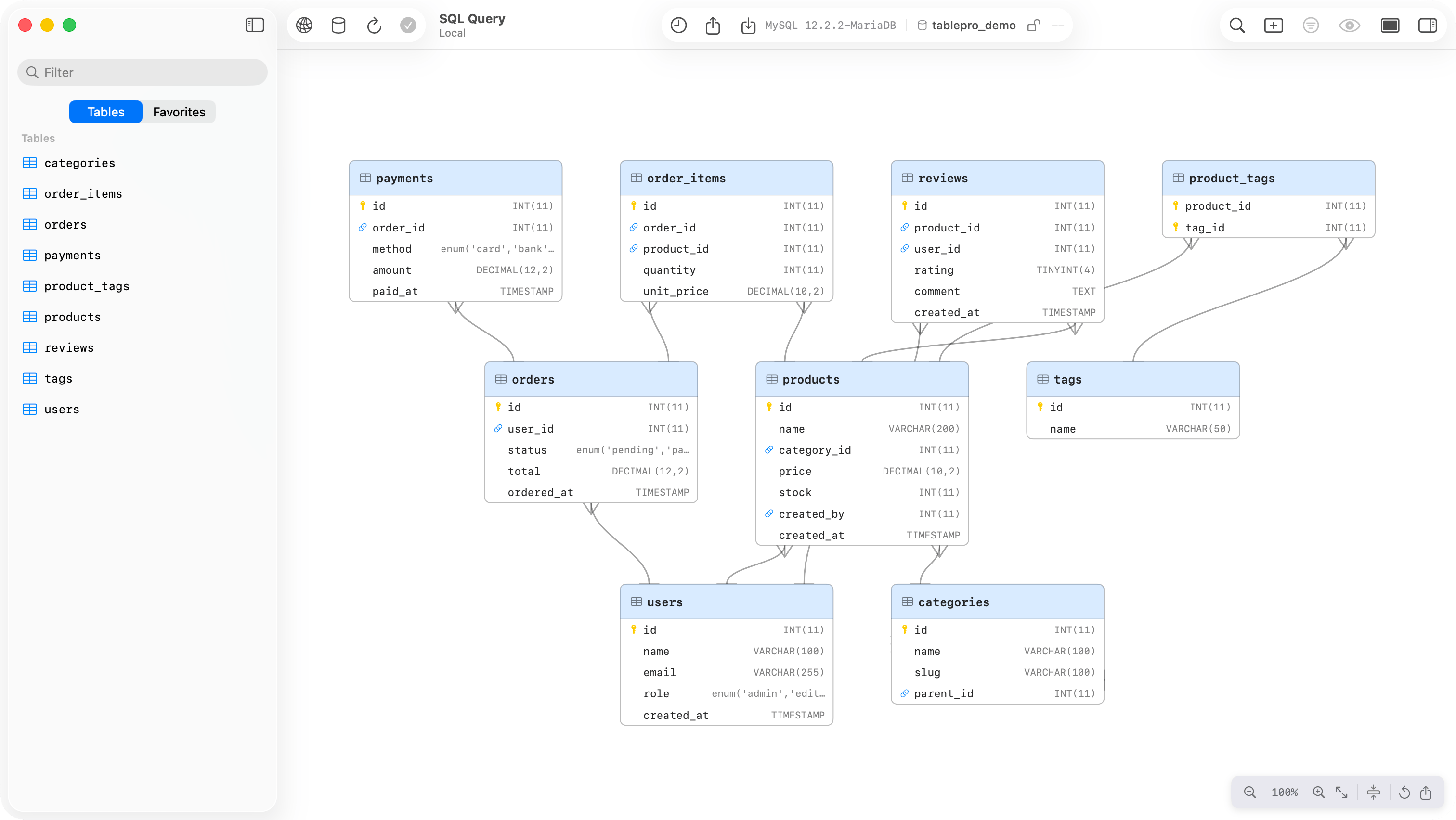
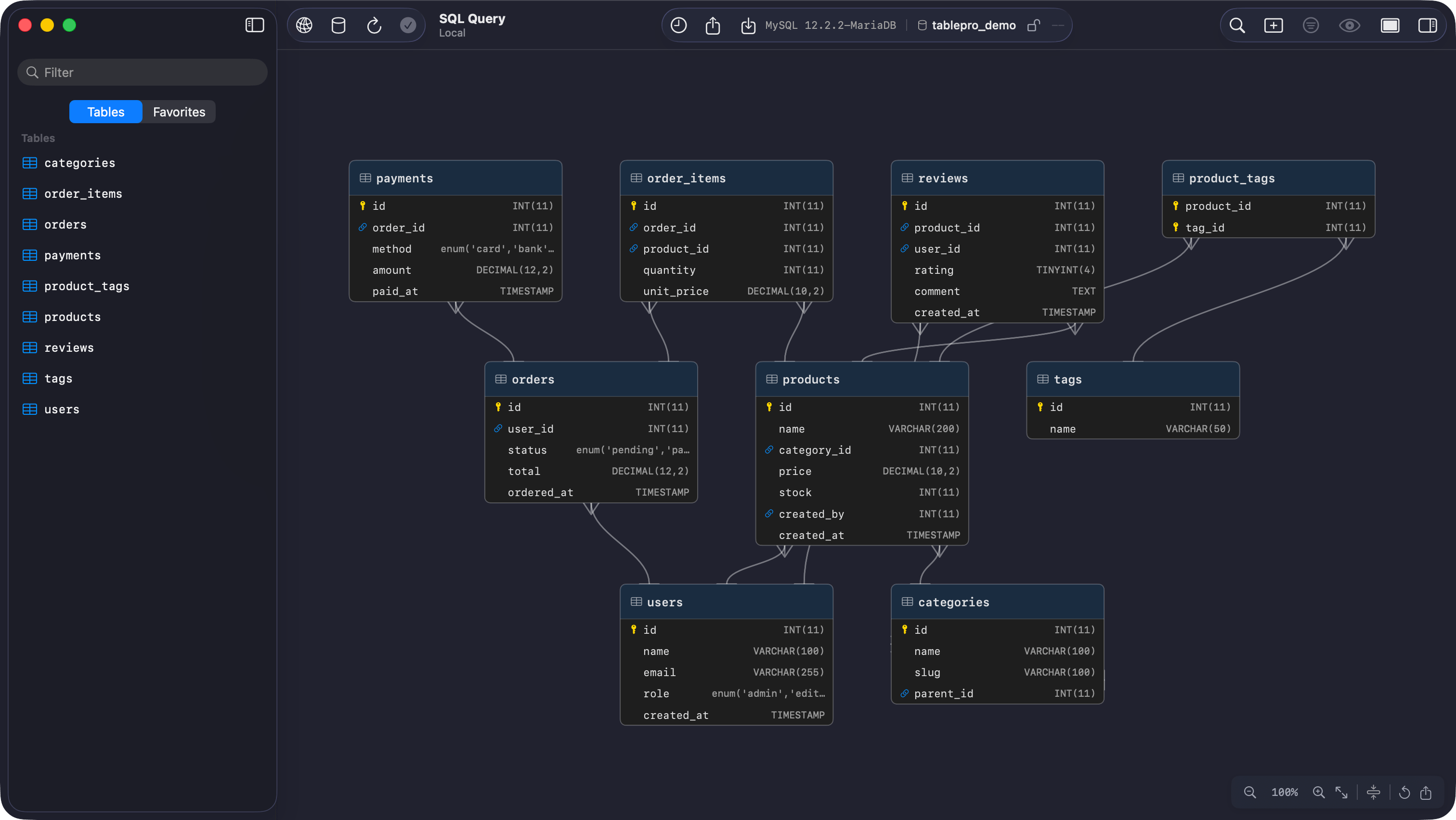
View all tables and foreign key relationships in your schema as an interactive diagram. Right-click a database in the sidebar and select **View ER Diagram**, or use the menu bar **View > ER Diagram**.
 ## Layout
Tables are arranged automatically using a layered layout algorithm. Tables with foreign keys (child tables) are placed above the tables they reference (parent tables). Tables with no relationships are placed in a grid below.
Each table node shows:
* **Header**: table name with icon
* **Columns**: name and data type, with badges for primary keys and foreign keys
* **Edges**: lines connecting FK columns to their referenced tables
## Navigation
| Action | Input |
| ------------- | --------------------------------------------------------- |
| Pan | Click and drag on empty space, or scroll wheel / trackpad |
| Zoom | Pinch on trackpad, or Cmd + scroll wheel |
| Zoom in | Click **+** or press `Cmd =` |
| Zoom out | Click **-** or press `Cmd -` |
| Fit to window | Click fit button or press `Cmd Shift 0` |
| Reset to 100% | Click the zoom percentage label or press `Cmd 0` |
## Moving Tables
Click and drag any table node to reposition it. Positions are saved automatically and persist across sessions.
Drag a table toward the edge of the viewport to auto-scroll the canvas in that direction.
Click **Reset Layout** (the circular arrow button) to return all tables to their computed positions.
## Compact Mode
Toggle compact mode with the filter button in the toolbar. In compact mode, each table shows only primary key and foreign key columns.
## Edge Notation
Edges use crow's foot notation:
* A **fork** (three lines) marks the "many" side of the relationship (the table that holds the foreign key)
* A **bar** (single perpendicular line) marks the "one" side (the referenced table)
For example, an edge from `orders.user_id` to `users.id` has the fork at `orders` and the bar at `users`.
## Export
Click the **export button** in the toolbar to save the diagram as a PNG image. You can also press `Cmd C` to copy the diagram to the clipboard.
## Database Support
ER diagrams work with any database that supports foreign key introspection:
| Database | Support |
| --------------------- | ------------------------------------ |
| MySQL / MariaDB | Full |
| PostgreSQL / Redshift | Full |
| SQLite | Full |
| SQL Server | Full |
| Oracle | Full |
| DuckDB | Full |
| Cassandra / ScyllaDB | Limited (no FK metadata) |
| MongoDB | Not supported (no relational schema) |
| Redis | Not supported |
The diagram shows foreign keys defined in the current schema. Cross-schema foreign keys are included if the referenced table is in the same schema.
## Layout
Tables are arranged automatically using a layered layout algorithm. Tables with foreign keys (child tables) are placed above the tables they reference (parent tables). Tables with no relationships are placed in a grid below.
Each table node shows:
* **Header**: table name with icon
* **Columns**: name and data type, with badges for primary keys and foreign keys
* **Edges**: lines connecting FK columns to their referenced tables
## Navigation
| Action | Input |
| ------------- | --------------------------------------------------------- |
| Pan | Click and drag on empty space, or scroll wheel / trackpad |
| Zoom | Pinch on trackpad, or Cmd + scroll wheel |
| Zoom in | Click **+** or press `Cmd =` |
| Zoom out | Click **-** or press `Cmd -` |
| Fit to window | Click fit button or press `Cmd Shift 0` |
| Reset to 100% | Click the zoom percentage label or press `Cmd 0` |
## Moving Tables
Click and drag any table node to reposition it. Positions are saved automatically and persist across sessions.
Drag a table toward the edge of the viewport to auto-scroll the canvas in that direction.
Click **Reset Layout** (the circular arrow button) to return all tables to their computed positions.
## Compact Mode
Toggle compact mode with the filter button in the toolbar. In compact mode, each table shows only primary key and foreign key columns.
## Edge Notation
Edges use crow's foot notation:
* A **fork** (three lines) marks the "many" side of the relationship (the table that holds the foreign key)
* A **bar** (single perpendicular line) marks the "one" side (the referenced table)
For example, an edge from `orders.user_id` to `users.id` has the fork at `orders` and the bar at `users`.
## Export
Click the **export button** in the toolbar to save the diagram as a PNG image. You can also press `Cmd C` to copy the diagram to the clipboard.
## Database Support
ER diagrams work with any database that supports foreign key introspection:
| Database | Support |
| --------------------- | ------------------------------------ |
| MySQL / MariaDB | Full |
| PostgreSQL / Redshift | Full |
| SQLite | Full |
| SQL Server | Full |
| Oracle | Full |
| DuckDB | Full |
| Cassandra / ScyllaDB | Limited (no FK metadata) |
| MongoDB | Not supported (no relational schema) |
| Redis | Not supported |
The diagram shows foreign keys defined in the current schema. Cross-schema foreign keys are included if the referenced table is in the same schema.